
How Writers Can Connect Substack to Google Analytics
Setup, reader journeys, and real-time campaigns


Substack gives us a nice view of our readers, but it doesn’t give us everything. We see open rates, subscriber growth, and which posts draw clicks. That’s helpful, but it stops short. Google Analytics opens the door wider. You can watch visitors move through your site in real time, see which posts keep them reading, and learn where they come from.
I set up Google Analytics for both my publications, Garden of Little Peace and Stories From a Dead Bookstore. It took less than an hour to do both. The setup is straightforward. Here’s how you can do it, too.
Create a GA Account
Go to analytics.google.com and sign in.
Click the gear icon in the lower left (Admin).
Under Account, choose Create Account. Name it.
Under Property, click Create Property. Call it something clear like “Substack.”
Choose Web as your stream type, add your Substack URL, and save.
Copy the Measurement ID (starts with
G-XXXXXXXXXX).Note: You’ll see a screen full of what looks like technical gibberish. As Douglas Adams would say, don’t panic. All you need is the string starting with G- and ending with a row of numbers.
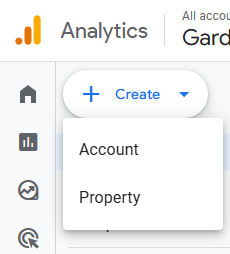
Create your GA account, then create your property.
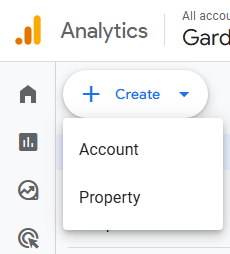
Connect Google Analytics to Substack
Open your Substack dashboard.
Go to Settings (gear in the bottom left corner) → Analytics (near the bottom of the page).
Paste the Measurement ID from GA(your G-###### number).
Save changes.
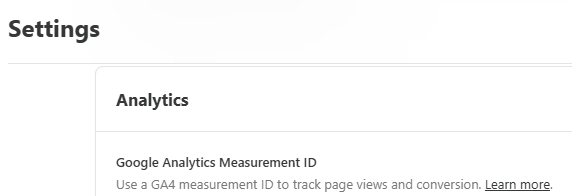
Paste the G-##### key in the box directly below GA Measurement ID.
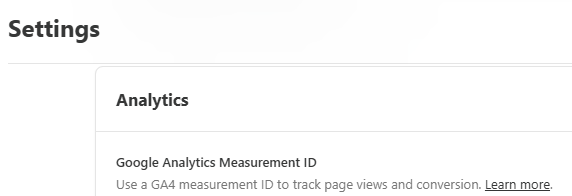
Check That It’s Working
Now you need to do a quick test to make sure it’s working.
Open your Substack site in a private (incognito) browser window.
In GA, go to Reports → Realtime (Overview or Pages—either will work).
Look for at least one active user. That’s you.
It can take thirty minutes for data to show. If nothing appears, double-check the ID and disable ad blockers while you test.
If this helped you set up GA, consider subscribing so you don’t miss other helpful guides for writers.
Decide if You Need Tag Manager
If you want to manage multiple tracking tools (ads, pixels, etc.), you can paste a Google Tag Manager ID into Substack instead of a GA code. Most writers won’t need this. I haven’t used it myself, so I’ll point you toward Google’s own support docs if you want to go deeper.
Filter Out Your Own Clicks
Clean data matters. Without this filter, my stats looked great…until I realized half my traffic came from me admiring my own work. Self-validation has its place, just not in analytics.
Find your IP address (search “what’s my IP” and it should come up).
In GA, go to Admin (back to the gear, bottom left) → Data Settings → Data Filters.
Create a filter to Exclude Internal Traffic and add your IP.
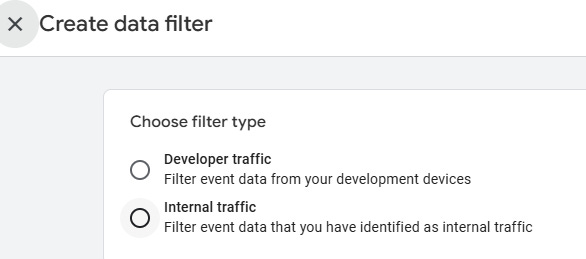
Pick the bottom option. Follow the prompts that come up. Typically, your filter will automatically begin in test mode. Set yourself a reminder to come back and change it to “active” once you’re sure it’s working. This is an easy one-click action.
The Benefits Writers Care About
So why go to all this trouble? Why bother with another set of numbers when Substack already gives you opens and clicks? Because GA answers the questions Substack doesn’t. It shows you how people move through your site, how long they linger, and what makes them leave. It tells you whether a post worked because readers stayed, or whether they skimmed the first paragraph and bolted. It gives you a sense of your audience as actual people making choices, not just a line on a chart.
When I checked my own reports, I saw many readers moved through my content exactly as I expected: starting at the prologue and staying to read chapter by chapter.
But others treated individual chapters like short stories and dropped in to read just one. Because I’m serializing a novel, it doesn’t change how I write, but it may shape how I market. Knowing both kinds of readers exist helps me decide what to highlight when I share posts and how to frame them for new subscribers.
When you see that level of detail, you can write smarter, link more strategically, and understand which efforts bring loyal readers back. Here are just some of the things you can do with Google Analytics.
Watch Reader Journeys
In Reports → Engagement → Pages and screens → View user paths, you can see how readers move through your site. Do they land on a single post or the homepage? Do they click into your archive or leave? This helps you decide which posts deserve a link on your homepage, which ones to reshare, and where readers tend to stop.
Measure Depth, Not Clicks
Substack tells you who opened. GA tells you how long they stayed. You’ll see:
Average engagement time
Scroll depth (if you enable Enhanced Measurement)
Bounce rate
These numbers reveal which posts pull readers in and which ones need stronger openings.
Learn More About Your Audience
GA collects data through cookies and device tracking. You’ll see where readers live, which devices they use, and even interest categories. If most of your readers come on phones, for example, you can format your posts with shorter paragraphs and images sized for mobile.
Important note: update your Privacy or About page to tell readers you use GA. Let them know they can:
Use browser “Do Not Track” or cookie blocking
Install Google’s opt-out add-on
Readers can turn this tracking off if they prefer. If you want the clearest picture, encourage them to leave it on, but respect the choice.
Why Real-Time Data Matters
Data doesn’t write our work, but it helps us understand how our work travels. Substack shows what happened yesterday. GA shows what’s happening right now. That difference matters when you test headlines, track a campaign, or watch whether outside promotion brought new readers.
For example, say you share a new post on Twitter. Use Google’s free Campaign URL Builder to add UTMs:
Campaign Source = twitter
Campaign Medium = social
Campaign Name = fall_promo
Your link will look like this:
https://littlepeacenovel.substack.com/p/my-latest-post?utm_source=twitter&utm_medium=social&utm_campaign=fall_promo
Share the link, then watch Realtime in GA. You’ll see traffic tagged as twitter / social with your campaign name within minutes. This kind of instant feedback lets you test two headlines side by side and know today which one pulled more readers.
If you know another writer who’d benefit from this, share this article with them. We all do better when we trade tools that work.
A Quick Note on Consent Settings
If you have readers in the European Economic Area, Google requires consent before collecting personal data for advertising. You can manage your defaults by going to
Data Collection and Modification—>Consent Settings—>Additional Consent Settings
If you don’t use ads, you don’t need to change anything. If you do, you’ll need a consent banner (though Substack doesn’t offer one yet). Most writers stick with analytics only. Either way, being upfront with your readers about how you use data builds trust, which matters more than any metric.
A Sample Privacy Notice
When using GA, it’s a good idea to include a privacy notice on your publication. You can see my Terms of Service on Garden of Little Peace as an example, or here’s a simple statement you can adapt for your Substack page:
This publication uses Google Analytics to understand how readers interact with my posts. Analytics collects information like device type, city-level location, and how long people stay on a page. I use this information to improve my writing and better serve my audience.
Readers can opt out at any time:
Use browser “Do Not Track” or cookie-blocking settings.
Install Google’s opt-out browser add-on: https://tools.google.com/dlpage/gaoptout.
I do not use Google Analytics for advertising or personalized marketing.
Wrapping Up
I hope this walk-through makes GA feel a little less intimidating and a lot more useful. Setting it up gave me a richer view of both Garden of Little Peace and Stories From a Dead Bookstore, and I’ve already learned things I wouldn’t have guessed just from Substack’s dashboard. I imagine the same could be true for you. If you decide to give it a try, let me know how it goes. I’d love to hear what you discover when you start watching your readers move through your work in real time, and if you’re comfortable, share it in the comments so other writers can learn from your experience too.
Oh this is very helpful! Thanks!